Your First Steps on Q Discord
Welcome to the Q Blockchain Discord server! If you have recently set up your Discord account, the following guide will walk you through the basics of navigating the server as a Q root node. While Discord might seem complex at first glance, it is a powerful tool that connects you with fellow panel members and the broader Q community.
Navigating Through Q Discord
Join the Q Blockchain Server: Join Q's Discord Channel and follow the instructions. If you have the desktop version of Discord installed, the link should automatically open the app.
Welcome to Q's Community: Upon joining, you will land in Q's welcoming channel. This channel helps verify that you are not a bot and acquaints you with the server rules and communication guidelines. The authentication process is straightforward and explained within the channel.
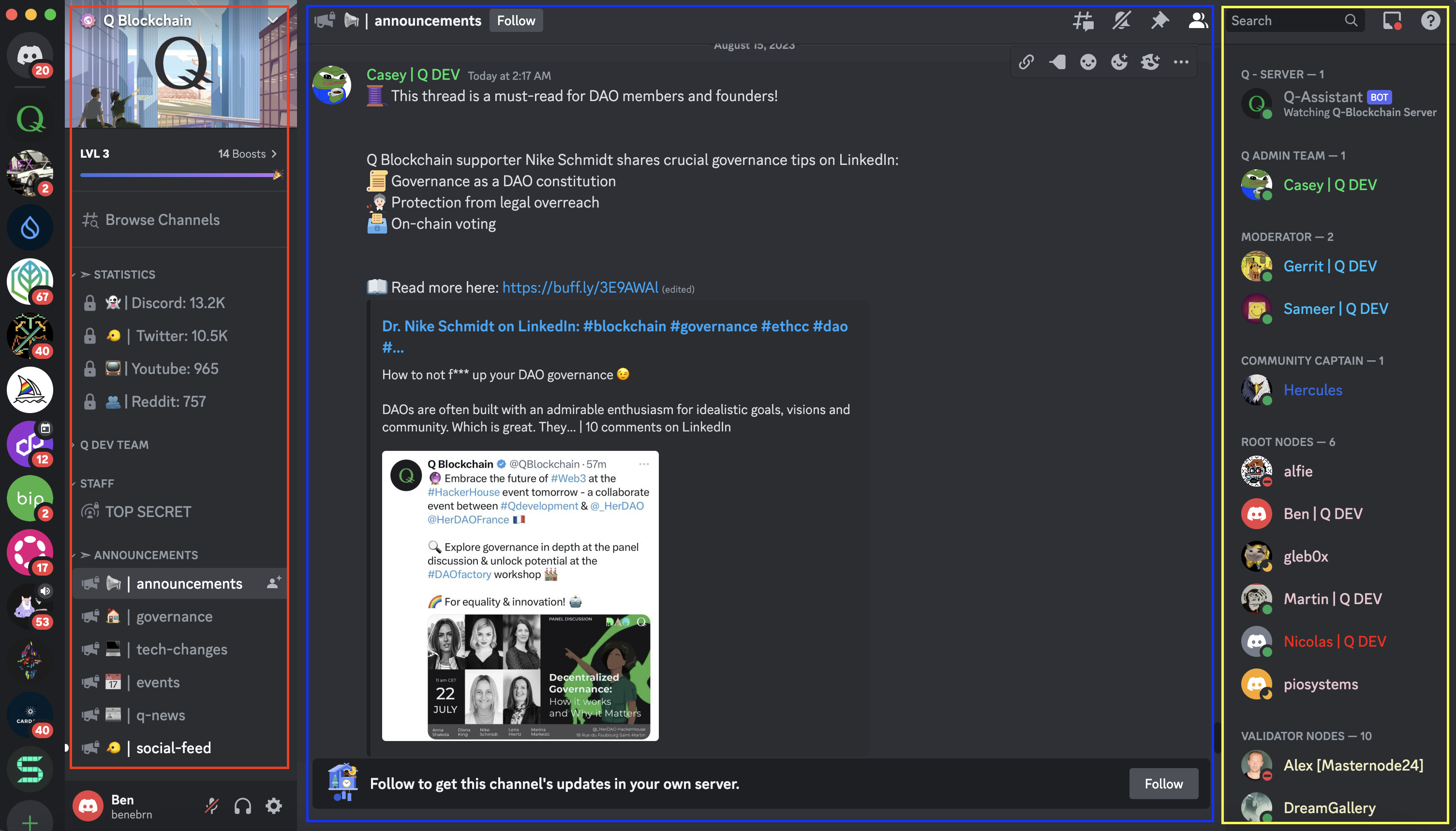
Understanding the Discord Interface: Once authenticated, you will see an interface similar to the screenshot provided below.
- Red (left square): These represent channels on the Q Discord server that you can access with your current user role. Click on any channel name to enter it.
- Blue (middle square): This displays the chat history for the selected channel. Note that some channels are read-only and meant for announcements.
- Yellow (right square): Here, you will see channel members currently online, sorted by their roles.
Navigating the Root Nodes Section: In the panel on the left, scroll down to the
Root Nodessection. As a mainnet root node, you should have access to these channels:- root-node-faq: A repository of non-private questions about root nodes and the root node panel's operations.
- root-general: Contains the bi-weekly meeting agenda and announcements relevant to root nodes and the broader Q community.
- testnet-and-candidates: This channel is exclusive to mainnet and testnet root nodes, as well as root node candidates. It is used to share meeting recordings and documentation.
- root-node-panel: A space for mainnet root nodes to exchange ideas with fellow panel members.
Missing Channels?: If you cannot see the
testnet-and-candidatesandroot-node-panelchannels, you might not have theRoot Nodesrole on Discord yet. Read the next section to learn how to open a ticket and obtain the role.
How to Open a Ticket on Q's Discord Server
There are several reasons you might want to open a ticket on Q's Discord server. Whether you are requesting the Root Nodes role, facing technical difficulties with Q's Discord server, or need assistance with your node, this guide will help you reach out to Q Devs support.
Navigate to Support Services: On the left panel, scroll down to the
Support-Servicessection and select theopen-ticketchannel.Initiate a New Ticket: In the
open-ticketchannel, read the provided instructions and click the SOS Support button. Doing so will create a new private channel that is only visible to you and the Q Dev support team.Access the Ticket Channel: Return to the left panel and locate the newly created ticket channel, e.g.,
ticket-1367. Usually, it opens up at the top of the channel list.Describe Your Issue: Clearly state your problem. If you are requesting the
Root Nodesrole, specify the permission you need on Discord, provide a link to the root node adding proposal, and mention any Q core team members you have been in touch with. This helps verify your identity.Awaiting Support: During regular operating hours, the Q Devs support team aims to address your concerns promptly. Depending on the volume of requests, responses might take a few minutes or a couple of hours. Once your issue is resolved, the private ticket channel will be closed.